In this section, we will go over the interface to get you familiar with the LiveCase web application and how to use it. We will also show you the Learner (referred to as “Player” on the LiveCase platform) interface.
The Educator view
As an educator, you will have a different view than the Players, which enables you to manage your session and that of the Players. We will cover:
- how to access the platform
- details on the various functionalities
Accessing the web application
Accessing Live Case is done through the Harvard Business Publishing Website.
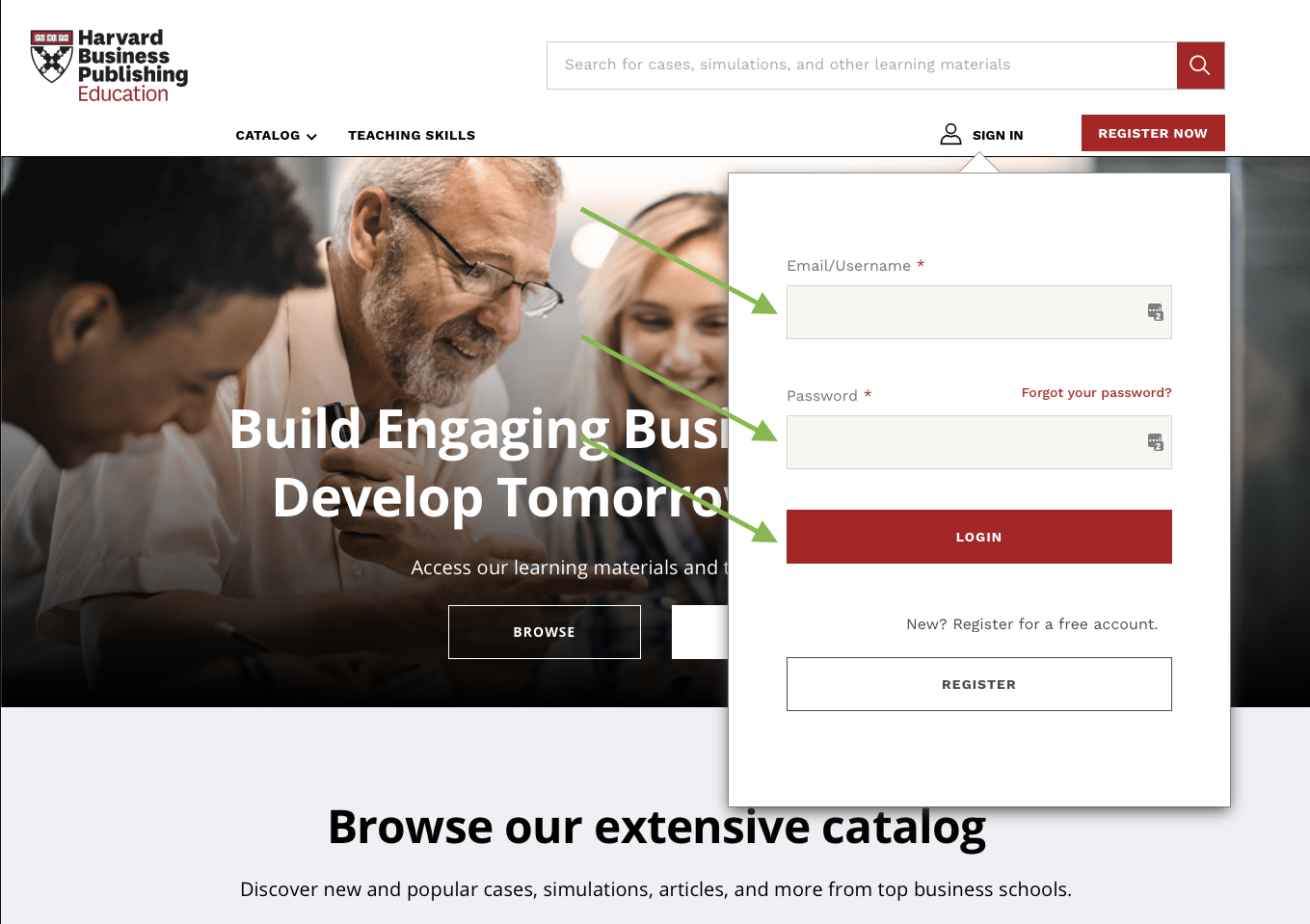
1) Go to Harvard Business Publishing website ( https://hbsp.harvard.edu ) and click “Sign in”

2) Enter your Harvard credentials
3) Find the course pack to which you added LiveCase
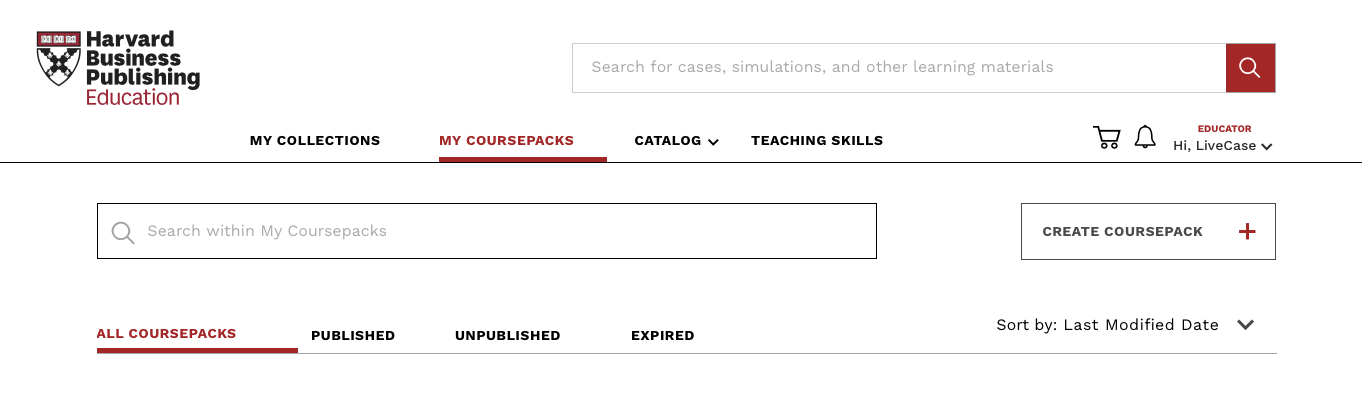
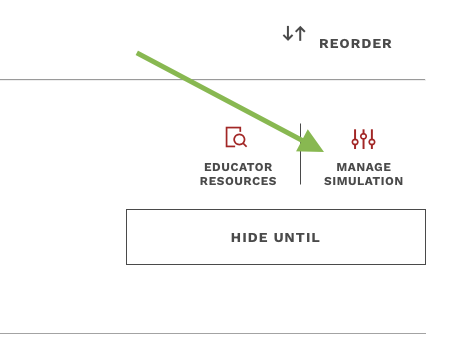
You will then be directed to the Educator’s view of the LiveCase web application.
Upon authentication completed, you should arrive on a page which looks like this:
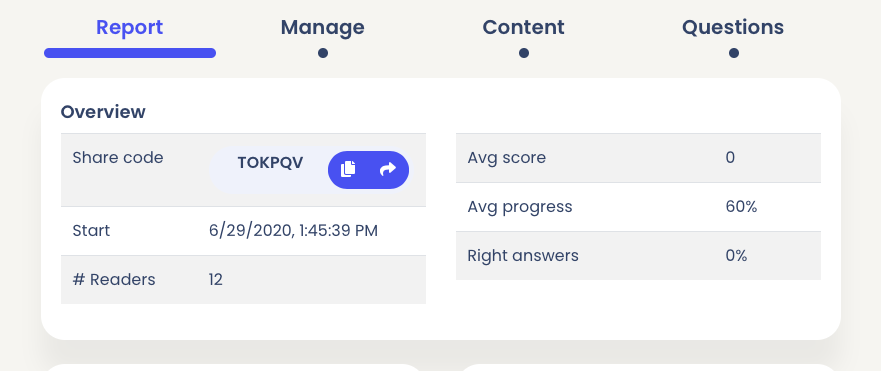
From here, please refer to the following links:
Setup and running a case
In this section, we will go over the preparation needed to get things set up and ready, as well as what you can do while the simulation is running.
Setup
None required.
Running the LiveCase
On the day you are running the LiveCase, your main responsibilities will be:
- Make sure Players join the simulation (Manage page)
- Review their progress and results (Report page)
- Release episodes per the Educator Teaching Note guidance (Manage page)
Make sure Players join the simulation
Players will be on both Harvard Business Publishing and LiveCase, but they will only appear on the LiveCase platform once they click “Run simulation” from the Harvard Business Publishing website.
Please note that all authentication of the Players will be done via the Harvard Business Publishing website. Please review our Frequently Asked Questions section below for common issues authenticating on the platform.
After the Players click the “Run simulation” button, they should appear in the manage page under the Players section. There might be a 30sec to 1min delay before it shows up on your side; alternatively, you can refresh the page.
Review their progress and results
To review the Players’ progress and results, everything can be seen in the Report page and the Question page. Please refer to the “Navigation as an Educator” section above for more in detail onboarding of that section.
Release of episodes
By default, no content is released to the Players. This will need to be done manually by an Educator while following the Teacher’s notes.
The release of episodes is done on the “Manage” page.

Then in the “Releasing” section:
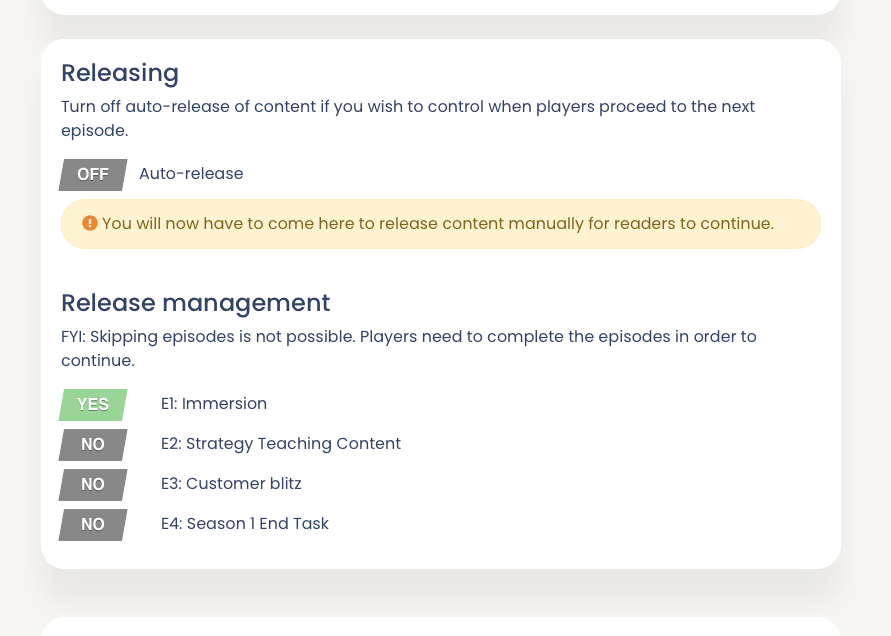
To release an episode, you simply need to toggle the “NO” to “YES” for the episode(s) you wish to release:

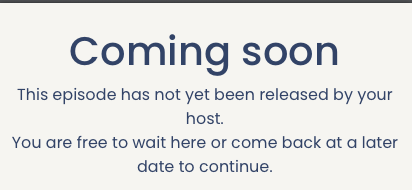
If a player has finished all the episodes and arrives at an episode that hasn’t been released, they will encounter a holding page such as the one below: